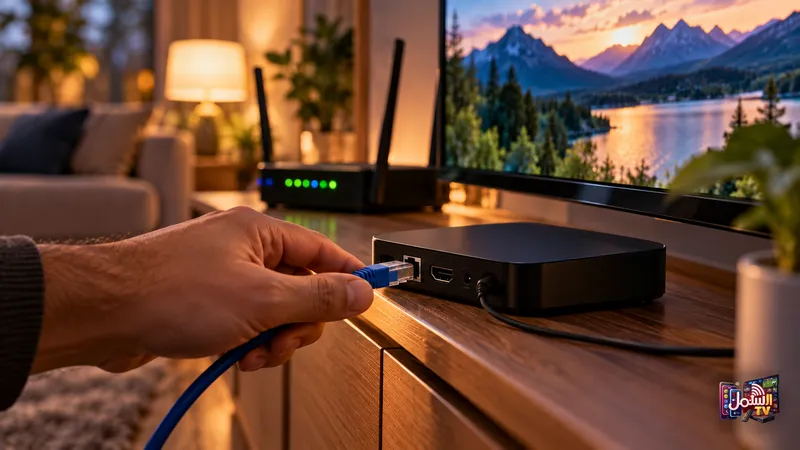
You sit down, pick your channel, and nothing happens. A black screen, an endless loading wheel, or an error message. It is annoying, but most of the time the fix takes only a few minutes, and you can often do it yourself.
This checklist walks you through the same steps our support team would ask you to try, in the order that solves problems fastest. Work through it with the remote in your hand. If it does not fix things, you will at least know exactly what to tell us, and we can sort it out much faster.
Step 1: Is it one channel or all of them? (30 seconds)
This is the most useful question of all, because it points straight to the cause.
- Only one channel is black while others play fine: the problem is almost certainly that channel, not your setup. Some channels go down temporarily at the broadcast source. This usually resolves within a few hours, and your subscription time is not affected. Try again after 10 to 15 minutes.
- Several channels in one group are not working: try a few from a different category to compare.
- Nothing loads at all: the problem is likely your connection, the app or your login. Carry on to step 2.
Step 2: Check your internet (1 minute)
Open another app on the same TV or box, such as YouTube, and play a video. If that does not work either, the problem is your internet, not the IPTV service.
If other apps work but streams are slow or freeze, see our guide on why IPTV buffers and how to fix it.
Step 3: The unplug trick (2 minutes)
This simple restart fixes a surprising number of problems, especially on Smart TVs and Android boxes that have been on for days.
- Unplug your TV or box from the power completely.
- Unplug your router or modem as well.
- Wait one to two minutes.
- Plug everything back in and let the router fully start.
- Open the IPTV app again.
Smart TVs have limited memory and build up cache over time, which slows streaming apps down. A full restart clears it out.
Step 4: Refresh the app (1 minute)
If the restart did not help, try these inside your player app:
- Log out and log back in. This reloads your channel list from scratch.
- Update the playlist and EPG. Most players have a refresh or update option in their settings.
- Clear the cache. Go to Settings > Apps, find your IPTV player and choose Clear Cache.
- Reinstall as a last resort. Uninstall the app, then install it again. Keep your login details or MAC address screenshot handy first.
If one app keeps giving trouble on a particular device, it can also help to try a different player. Our guide to the best IPTV player apps explains the options, and our team can help you switch.
If your TV guide looks empty or out of date, our article on the EPG TV guide explains how it updates.
Step 5: Check your login and subscription (1 minute)
If the app says the login is wrong, or loads but shows no channels, check the following:
- Copy and paste the exact details we sent you. Do not type them by hand.
- Look for extra spaces before or after the username or password.
- Check the server URL. It should start with http://, not https://.
- Check your subscription date. If it has expired, channels will stop until you renew.
We send reminders before your plan ends, but you do not have to wait for one. If you want to renew early at the same price, just message us at any time.
Still not working? Here is what to send us
If you have been through the checklist and the problem is still there, it is time to message us. Our team is on WhatsApp 24/7, and the right details in your first message mean we can fix it without lots of back-and-forth.
| Send us | Why it helps |
|---|---|
| Your device (Firestick, Samsung TV, Android box, iPhone…) | Each device has its own fixes |
| The app you use | Settings differ between players |
| A photo of the error or black screen | Shows us exactly what you see |
| Which channels are affected | Tells us if it is one channel or your account |
| What you have already tried | Saves time repeating steps |
From there, we can check your subscription, reset your login details within minutes, or move you to a different server if a route is having trouble. You can also send #help on WhatsApp to open a support ticket, or use the live chat on our website.
We are here day and night
Message our team on WhatsApp, send #help for a support ticket, or visit our support page. Not a customer yet? Try everything for yourself with a 24-hour free trial, no credit card needed.