If your IPTV freezes and you are watching over Wi-Fi, there is one small change that solves the problem more often than anything else: plug in a cable. It is not exciting, but it works.
Wi-Fi is convenient, and for phones and laptops it is usually fine. Live TV is more demanding. It needs a steady flow of data every second, and Wi-Fi is not always steady. This guide explains why, when a cable makes sense, and how to get the best out of Wi-Fi when a cable is not possible.
Why Wi-Fi struggles with live TV
Wi-Fi sends your internet through the air using radio signals. That works well over short distances, but the signal gets weaker and less reliable as it travels. A few common things get in the way:
- Distance. The further the TV is from the router, the weaker the signal.
- Walls and floors. Thick walls, concrete, mirrors and metal all block or bounce the signal.
- Other devices. Microwaves, cordless phones and baby monitors can interfere.
- Neighbours. In flats and apartment blocks, many Wi-Fi networks compete for the same airspace.
- Everyone at home. Every phone, tablet and laptop on the same Wi-Fi shares it.
The result is a connection that rises and falls from moment to moment. Your speed test might look fine, but a short dip at the wrong second empties the player's buffer and the picture freezes.
Why a cable fixes it
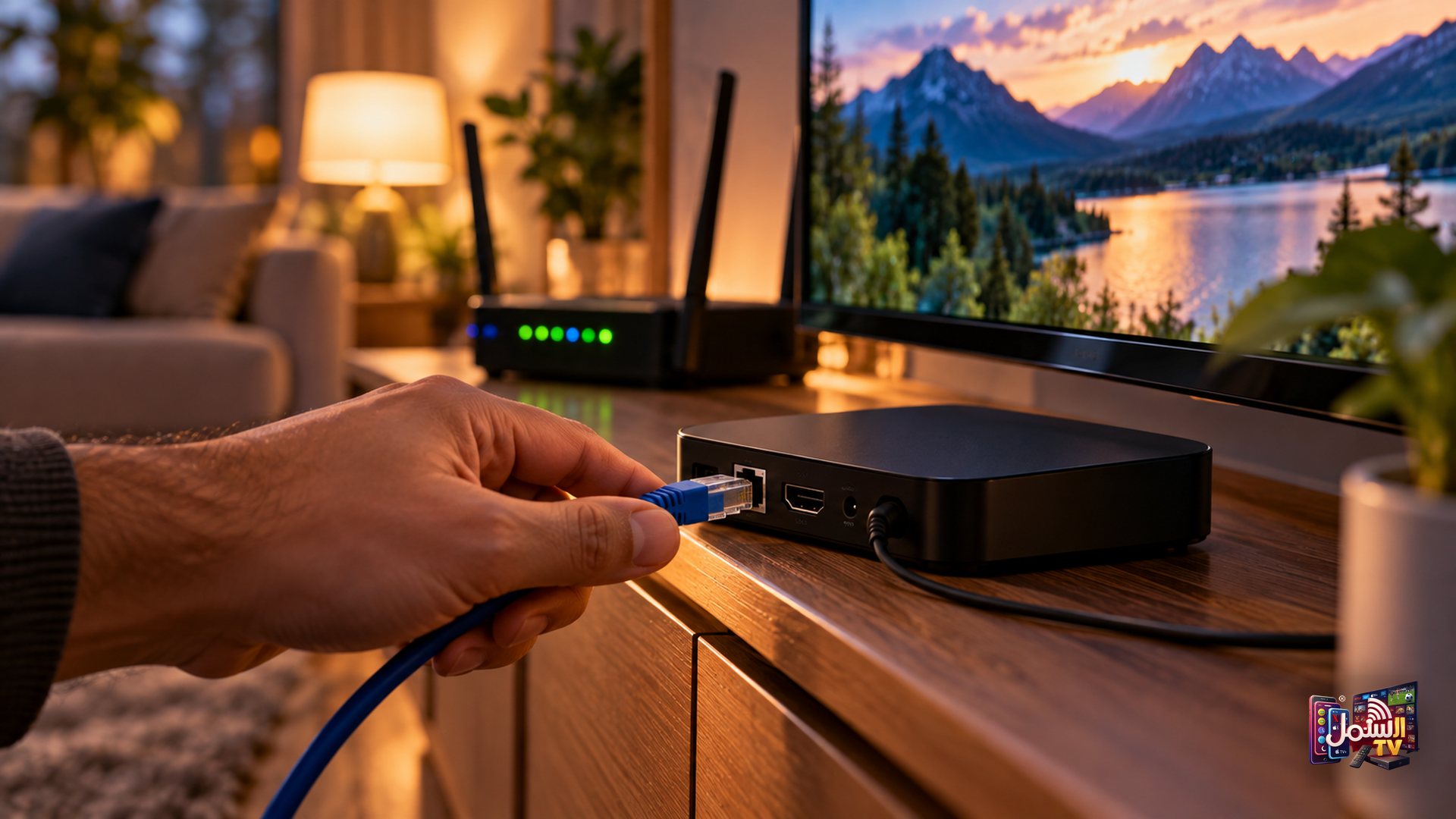
An Ethernet cable, also called a LAN cable, connects your TV or box directly to the router. The data travels down a wire instead of through the air, so walls, distance and neighbours stop mattering.
| Wi-Fi | Ethernet cable | |
|---|---|---|
| Stability | Rises and falls with signal | Steady |
| Affected by walls and distance | Yes | No |
| Affected by other devices | Often | Rarely |
| Best for | Phones, tablets, laptops | TVs, Android boxes, live sport |
| Setup | Enter a password | Plug in a cable |
Want to see the difference for yourself? Play a busy live channel over Wi-Fi for a few minutes, then plug in the cable and play the same channel again. In many homes the change is obvious straight away: the picture starts faster, and the little pauses disappear.
For a TV that stays in one place, the cable wins almost every time. That is why switching from Wi-Fi to Ethernet is one of the first fixes our support team suggests for freezing.
How to connect your TV or box with a cable
- Look on the back of your Smart TV or Android box for a port marked LAN or Ethernet. It looks like a slightly wider phone socket.
- Get a standard Ethernet cable long enough to reach your router.
- Plug one end into the TV or box, and the other into a free port on the router.
- On the TV, open the network settings and choose Wired or Ethernet if it does not switch automatically.
- Restart the IPTV app and play a channel.
What about Firestick and devices without a port?
Some streaming sticks, including many Amazon Firestick models, do not have an Ethernet port built in. Some can use a separate Ethernet adapter, so check what works with your model. If you are setting one up, our Firestick setup guide walks you through it.
If a cable is not an option, the next section will help you get the most from Wi-Fi.
Making Wi-Fi work as well as possible
- Move the router. Put it in a central, open position, off the floor and away from thick walls and other electronics.
- Restart regularly. Unplug the router for one to two minutes, then plug it back in. This clears up slowdowns that build over time.
- Cut background use. Pause big downloads and updates on other devices while you watch live sport.
- Fill the gaps. In a larger home, a Wi-Fi extender or mesh system placed between the router and the TV can carry a stronger signal to the room where you watch.
- Use the quality setting. If the picture stutters, set the player to Auto or HD so it adjusts to the connection.
- Check the speed at the TV. A minimum of 10 Mbps is needed, and 25 Mbps is recommended for 4K. See our internet speed guide for more.
When the cable is not the answer
A cable fixes problems inside your home. It cannot fix a busy route between the server and your internet provider, or a provider that slows down streams at peak times.
That part is handled on our side. Shamil TV's Matrix Technology routes each stream over the fastest available path for your location and switches automatically if a route slows down or a server is congested or blocked. If you are on a cable and still see freezing, message our team on WhatsApp. We can move you to a different server within minutes.
Plug in, then try it
Connect a cable, start a 24-hour free trial and watch a live channel at your busiest time of day. Still not smooth? Our team is on WhatsApp 24/7, or visit our support page.