With 50,000+ live channels, the hardest part of watching TV is not finding something good. It is finding it at the right time. That is what the TV guide is for.
In IPTV, the TV guide is called the EPG, short for Electronic Programme Guide. It is included with your Shamil TV subscription, and once you know how to use it, it changes the way you watch. No more flicking through hundreds of channels hoping to land on something.
This guide explains what the EPG is, how to read it, and how to fix it when it shows the wrong thing or nothing at all.
What an EPG actually is
Think of the printed TV listings people used to buy each week, but built into your screen and updated automatically. The EPG pulls in schedule information for each channel and shows it next to the channel list.
Depending on the player, it typically shows you:
- What is on now, often with a progress bar showing how far into the programme you are.
- What is on next, and the schedule for later in the day.
- Programme details, such as a short description, start time and end time.
The guide data comes with your subscription. Your player app reads it and displays it in its own style, so it looks a little different in IBO Player Pro, IPTV Smarters or GSE Smart IPTV, but the information is the same.
Where to find the guide
There are two places to check the schedule:
- In your player app. Most players show a short now-and-next line when you highlight a channel, and a full grid view in a TV guide or EPG section of the menu.
- On our website. Our EPG page lets you look up schedules from any browser, which is handy for planning ahead on your phone before you sit down at the TV.
How to read the grid view
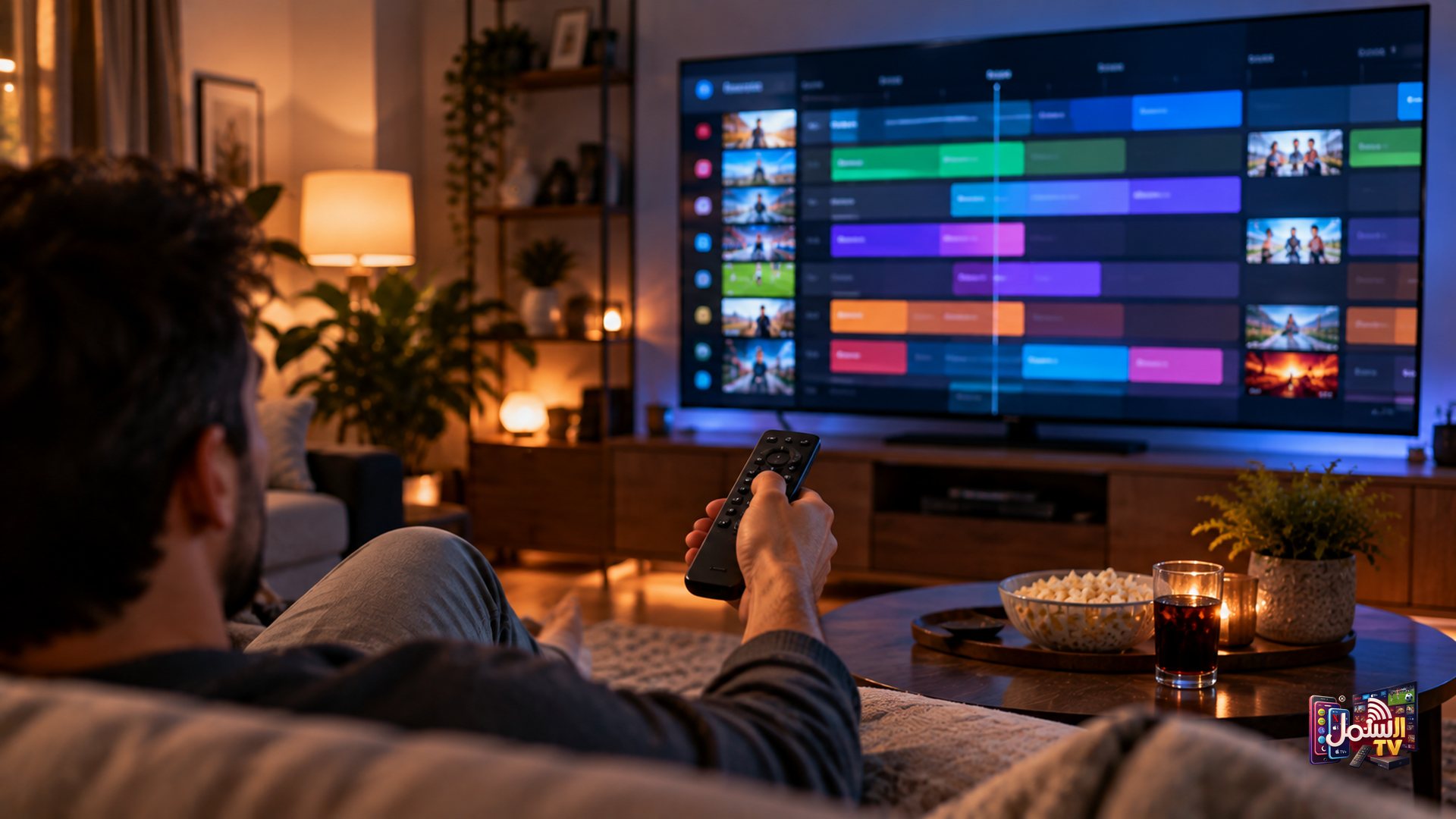
The full guide is usually laid out as a grid:
- Channels run down the left side, one per row.
- Time runs across the top, usually in half-hour or hour blocks.
- Each block is a programme. Longer shows take up wider blocks.
Use the arrow keys on your remote to move around. Up and down changes channel, left and right moves through time. Selecting a programme that is on now usually takes you straight to that channel.
With thousands of channels, scrolling the whole grid is slow. That is where the next section helps.
Use the guide like a pro
A few habits make the EPG much more useful:
- Pick a category first. Open the sports, news or kids category, then open the guide. You only see the channels that matter.
- Build a Favourites list. Add the channels you watch every week. Many players let you view the guide for Favourites only, which turns thousands of rows into a dozen.
- Ask for a custom playlist. After activation, our team can build a personalised line-up, for example Arabic news and Turkish dramas only, or cricket, football and UFC only. A shorter list means a faster, cleaner guide.
- Glance at now-and-next while browsing. Instead of opening every channel, read the info line under each one. It saves a lot of time.
When the guide is empty or wrong
EPG problems are common and almost always easy to fix. Here is what to check.
The guide is completely empty
- Go to your player's settings and choose the option to update or refresh the playlist or EPG.
- Wait a minute or two. On a big channel list, the guide can take a little while to load.
- If still empty, log out of the app and log back in.
- Try the unplug trick: unplug the TV or device and your router, wait one to two minutes, then plug them back in.
The times are off by an hour or more
This is almost always a time zone setting. Check that your TV or device has the correct date, time and time zone. Many players also have an EPG time offset or time shift option in their settings, which lets you move the guide forward or back to match your local time.
Only some channels show "No Information"
Not every channel supplies guide data, particularly some smaller regional channels. That does not mean the channel itself is broken. If it plays fine, it is just missing schedule information. If a channel you rely on never shows guide data, tell us on WhatsApp and we will look into it.
Keeping your guide fast
On Smart TVs and Android boxes, a large guide uses memory. If the guide is slow to scroll, clear the player's cache (Settings, Apps, your IPTV player, Clear Cache), uninstall apps you do not use, and avoid running other apps at the same time. A fresh restart now and then keeps everything snappy.
Never miss a show again
The EPG TV guide comes with every plan. Try it free for 24 hours with our free trial, browse schedules on our EPG page, or see plans on our pricing page. Questions? Our team is on WhatsApp 24/7.