Buffering is the number one complaint with any kind of online TV. The picture stops, a wheel spins, and by the time it comes back the goal has already happened. It is frustrating, but the good news is that most buffering has a simple cause and a simple fix.
This guide explains why IPTV buffers in plain English, then walks you through the fixes that actually work, in the order we suggest trying them. Most people solve the problem in the first two or three steps.
What buffering actually means
A live stream is a constant flow of small pieces of video. Your player keeps a few seconds stored in a small waiting area, called the buffer, so the picture stays smooth even if the connection wobbles for a moment.
When video arrives more slowly than the TV plays it, that waiting area empties. The player has nothing left to show, so it stops and waits to refill. That pause is what you see as buffering or freezing.
So the real question is always the same: where is the slowdown? It can be in one of four places.
The four common causes
- Your internet speed is too low. High-quality streams need more speed. A 4K or 8K channel on a slow connection will struggle. See our internet speed guide for the numbers.
- Weak Wi-Fi. Even with fast internet, a TV two rooms away from the router may only get a fraction of the speed. Walls, floors, microwaves and neighbouring networks all get in the way.
- The device is tired. Smart TVs and Android boxes have limited memory. Over time, cached files and lots of installed apps fill it up, and the player starts to stutter.
- A busy or blocked route. At peak times, some routes and servers get congested, and some internet providers slow down or block streams. This one is on our side, and it is what Matrix Technology is built for.
The fixes that work, in order
Work through these one at a time. After each one, play a channel for a few minutes to see if the problem is gone before moving on.
Fix 1: The unplug trick
It sounds too simple, but it works surprisingly often. Restarting clears memory and temporary files on both the TV and the router.
- Unplug your TV or box from the power completely. Do not just use the remote.
- Unplug your router or modem too.
- Wait one to two minutes.
- Plug everything back in and let the router fully start up.
- Open the IPTV app again.
If buffering stops, the problem was simply a device that needed a fresh start. Doing this once a week helps keep older Smart TVs running smoothly.
Fix 2: Use a cable instead of Wi-Fi
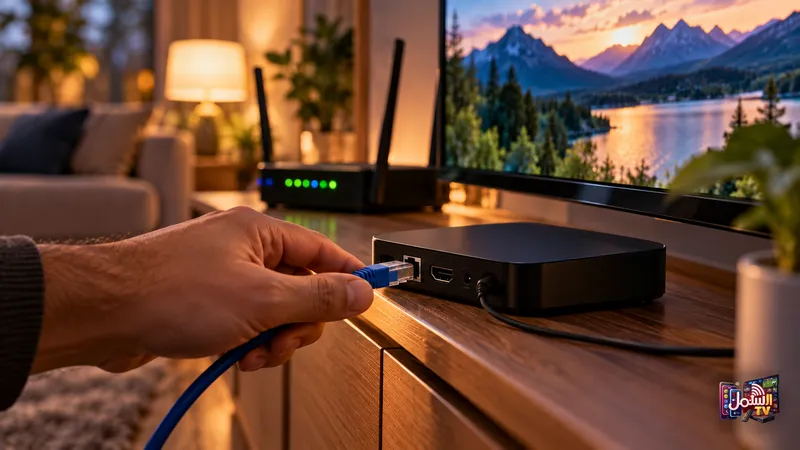
If your TV or box has an Ethernet port, connect it to the router with a LAN cable. This removes the most common cause of freezing in one move. A cable gives a steady connection that does not drop when someone starts a video call in the next room.
If a cable is not possible, move the router closer or higher up, and keep it away from thick walls and other electronics. Our guide on Wi-Fi vs Ethernet for IPTV explains the options in more detail.
Fix 3: Clear the cache and free up memory
If your TV or box has lots of apps installed, it may be running out of memory. Here is how to give the player some room:
- Go to Settings > Apps, find your IPTV player, and choose Clear Cache. If problems continue, also choose Clear Data.
- On Android TV, you can also go to Settings > Device Preferences > Storage and clear cached data.
- Uninstall apps you never use.
- Avoid running several apps at the same time while streaming.
- Restart the device after clearing the cache.
Fix 4: Check your speed and quality setting
Run a speed test on the same device you watch on, ideally while the TV is in use. As a guide, a minimum of 10 Mbps is needed, 25 Mbps is recommended for 4K, and 50 Mbps or more for 8K.
If your speed is below that, you do not need to give up on smooth TV. Most players have a quality setting such as Auto, SD or HD. Setting it to Auto or HD lets the picture adjust to your connection instead of freezing.
Fix 5: Let us switch your route
If you have tried the steps above and one channel or all channels still buffer, the slowdown may be on the way to your home rather than inside it. That is where we come in.
Shamil TV uses Matrix Technology, which routes each stream over the fastest available path for your location and switches automatically if a route slows down or a server is congested or blocked. If you still have trouble, our team can move you to a closer or different server within minutes on WhatsApp.
Your player choice matters too. IBO Player Pro, our recommended player, handles ISP blocks better than free players. It is included free with our 6-month and 1-year plans.
A quick checklist to keep handy
- Unplug TV and router for one to two minutes.
- Use an Ethernet cable if you can.
- Clear the player cache and remove unused apps.
- Check your speed: 10 Mbps minimum, 25 Mbps for 4K.
- Set quality to Auto or HD on slower connections.
- Switch stream format between TS and HLS.
- Still buffering? Message us on WhatsApp.
Still buffering? We are here 24/7
Send us a message on WhatsApp, use the live chat on our website, or visit our support page. Tell us your device and which channels are affected, and we will get you watching again. New to Shamil TV? Start with a 24-hour free trial.