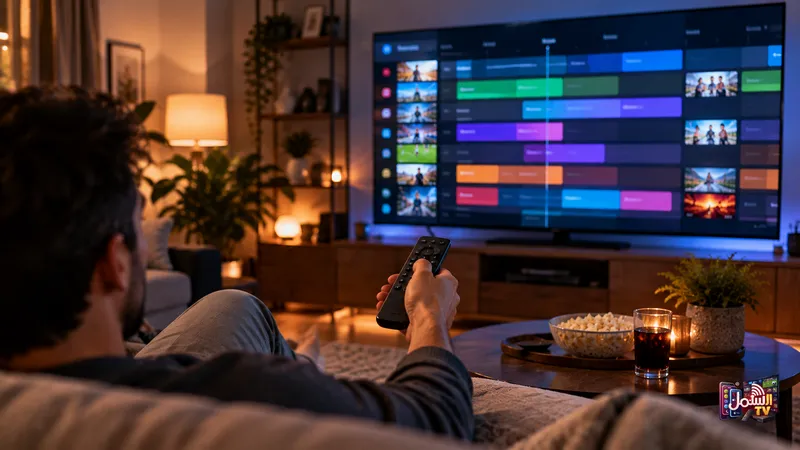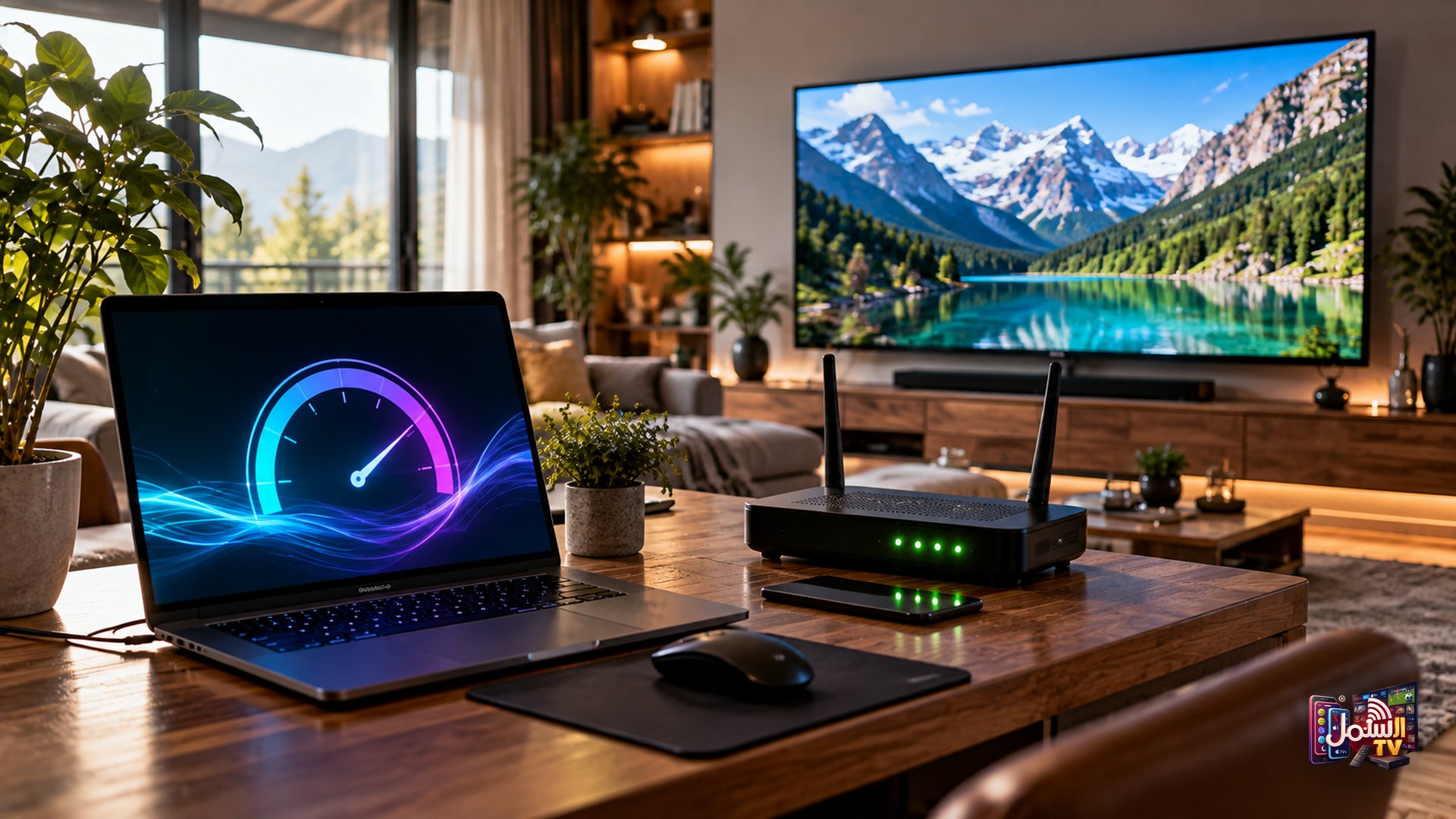
"Is my internet fast enough?" is one of the first questions people ask before they start with IPTV. It is a smart question. Speed is the single biggest factor in whether a stream plays smoothly or keeps stopping.
The good news is that you do not need a huge connection to enjoy great TV. This guide gives you clear speed numbers for each picture quality, shows you how to test your connection properly, and explains what to do if your speed is on the low side.
Speed in plain English
Internet speed is measured in megabits per second, written as Mbps. The higher the number, the more data can reach your home each second.
Video is data. A sharper picture holds more detail, so it needs more data every second. That is why a 4K channel needs more speed than a standard one, and 8K needs more again. If the data cannot arrive fast enough, the player runs out of video and pauses. That pause is buffering.
The speeds you need
| What you want to watch | Speed we recommend |
|---|---|
| Everyday streaming and HD channels | At least 10 Mbps (minimum) |
| 4K channels and films | 25 Mbps |
| 4K Plus and 8K | 50 Mbps or more |
Think of these as the speed that should reach the TV or box, not the number printed on your internet bill. The speed that actually arrives at your screen is often lower, especially over Wi-Fi.
How to test your speed the right way
A speed test is only useful if you run it in the right place. Here is how to get a number you can trust:
- Test on the device you watch on. Many Smart TVs, Android boxes and Firesticks have a browser or a speed test app. A test on your phone next to the router does not tell you what the TV in the living room is getting.
- Test at the time you usually watch. Speeds in the evening are often lower than in the morning, because more people are online.
- Run it two or three times. One result can be a fluke. Look at the typical number.
- Pause big downloads. Game updates or cloud backups on other devices can eat your speed in the background.
What to do if your speed is too low
Low speed does not mean you cannot enjoy IPTV. Try these steps, starting with the easiest:
- Use an Ethernet cable. Connecting the TV or box to the router with a LAN cable often brings the speed at the screen much closer to what you pay for. Our guide on Wi-Fi vs Ethernet explains why.
- Move the router. If a cable is not possible, put the router in a central, open spot, higher up and away from thick walls.
- Restart the router. Unplug it for one to two minutes, then plug it back in. It clears up a lot of slowdowns.
- Change the quality setting. Most players have a quality option such as Auto, SD or HD. Auto lets the picture adjust to your connection instead of freezing.
- Try a different stream format. In your IPTV app settings, switch the stream format from TS to HLS, or the other way round. On some connections one plays noticeably smoother.
- Talk to your provider. If your real speed is far below your plan, it may be worth asking them to check your line.
Watching on a phone or tablet
On mobile, things work a little differently. Shamil TV streams in quality up to 4K Plus and 8K, and on a weak mobile data connection that can buffer. But the player has a built-in quality setting with Auto, SD and HD options, so it works fine on most modern phones over Wi-Fi or 5G.
If a channel stutters on mobile data, switch the player to Auto or HD. Our recommended player, IBO Player Pro, also handles ISP throttling better than free players, which helps on busy mobile networks. For phone setup, see our guide to IPTV on iPhone and iPad.
When speed is not the problem
Sometimes your speed test looks great and the stream still buffers. In that case, the slowdown is somewhere else. Common causes are:
- A Smart TV or box that is low on memory. Clearing the app cache and restarting usually helps.
- Your internet provider slowing down streams at peak times.
- A busy route between the server and your home.
The last two are where Shamil TV's Matrix Technology comes in. It routes each stream over the fastest available path for your location and switches automatically if a route slows down or a server is congested or blocked. If you still have trouble, our team can move you to a closer server within minutes on WhatsApp.
Test it on your own connection
The best speed test is a real one. Start a 24-hour free trial with no credit card, try a few 4K channels at your usual viewing time, and see how it plays. Need help reading your speed test? Message our team on WhatsApp, any time.