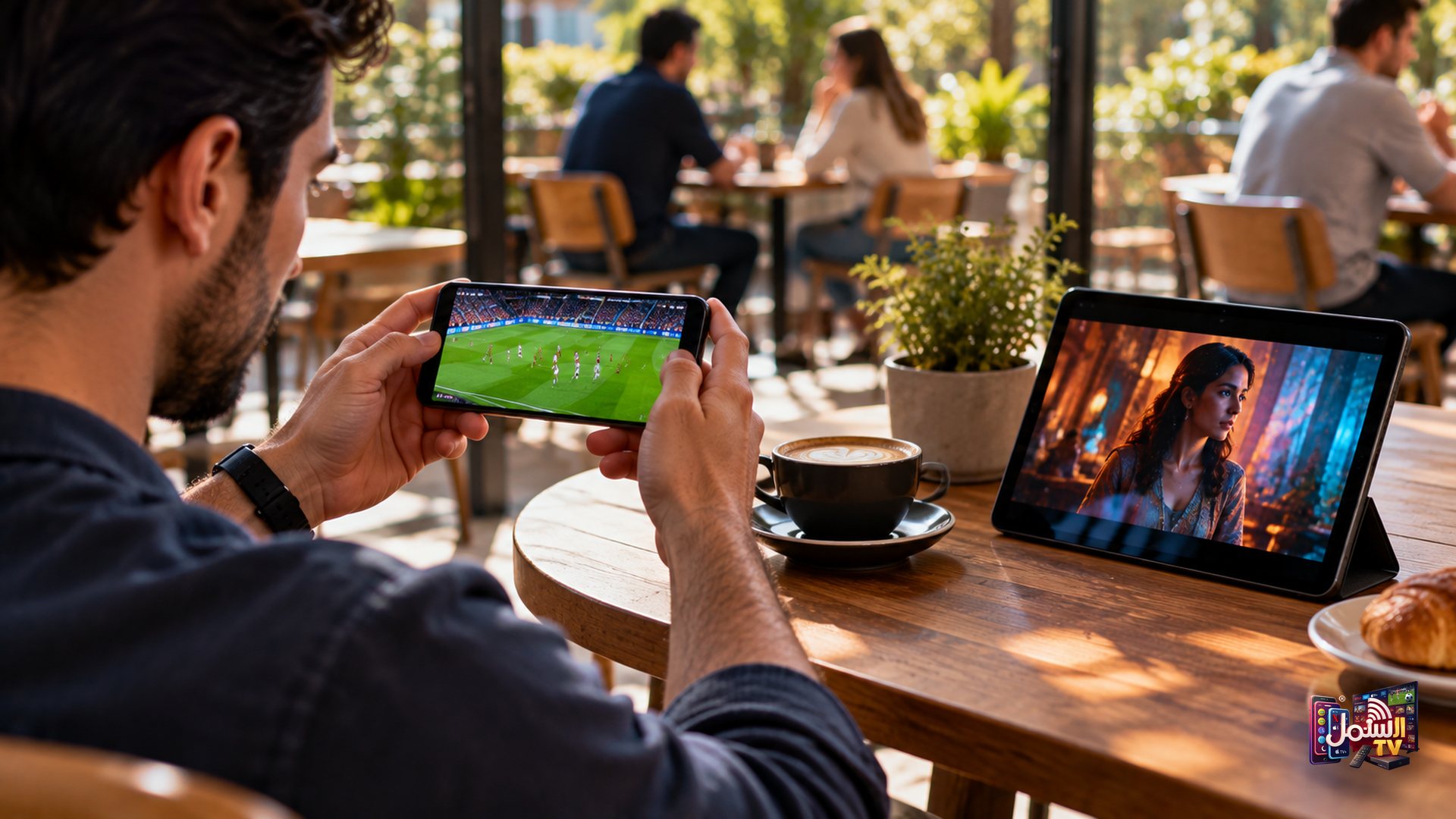
Your iPhone and iPad are great second screens. You can catch the match in the kitchen, keep the news on while you travel, or let the kids watch cartoons on the iPad while the big TV is busy.
Setting up Shamil TV on Apple devices takes about five minutes. Our recommended way is IBO Player, the same player we use on Smart TVs: you send us a screenshot and our team activates it. If you would rather use a free app with a username and password, that works too.
This guide covers which app to install, exactly what to tap, and how to fix the most common login problems.
Which app to use on iPhone and iPad
For iPhone and iPad, there are three apps we set customers up with, all from the App Store:
| App | Price | How you log in |
|---|---|---|
| IBO Player (recommended) | Free download | MAC address + Device Key, activated by our team |
| GSE Smart IPTV | Free | Xtream Codes API (server URL, username, password) |
| Smarters Player Lite | Free | Xtream Codes API (server URL, username, password) |
All three show live TV, movies and series. IBO Player is our first choice because it is the most stable and handles ISP blocking better. GSE and Smarters are good free alternatives, and you can switch between them with the same login. You can compare them in more detail in our guide to choosing an IPTV player.
What you need first
- WhatsApp open so you can send us your IBO screenshot, or receive your server URL, username and password if you use GSE or Smarters. Trial customers go through the same steps.
- A stable connection. At least 10 Mbps for normal viewing, around 25 Mbps for 4K.
- A few minutes and your Apple ID to download the app.
Not a customer yet? You can request a free 24-hour trial first. No credit card is needed.
Step-by-step setup with IBO Player
- Open the App Store on your iPhone or iPad and search for IBO Player. Install it.
- Open IBO Player. You will see your MAC Address and Device Key on screen.
- Take a screenshot and send it to us on WhatsApp.
- Our team activates your player as soon as we receive it, during business hours (9 AM to 11 PM UAE time).
- Restart the app. Your channels, movies and series load automatically.
Setup with GSE Smart IPTV or Smarters Player Lite
- Open the App Store on your iPhone or iPad.
- Search for GSE Smart IPTV or Smarters Player Lite and install it.
- Open the app and tap Add Playlist or Add User (the wording depends on the app).
- Choose Xtream Codes API as the login type.
- Enter the Server URL, Username and Password exactly as we sent them.
- Tap Save or Add.
Give it one to two minutes. The app downloads your full channel list along with movies and series. After that, it opens much faster each time.
If the login does not work
Almost every login problem comes down to one of these small things:
- Extra spaces. When you paste, a space can sneak in before or after the username or password. Delete it.
- Wrong URL format. The server URL should start with http://, not https://. Use it exactly as we sent it.
- Capital letters. Usernames and passwords are case-sensitive. iPhone keyboards often capitalise the first letter automatically, so check it.
- Expired subscription. If your plan or trial has ended, the login stops working until you renew.
Still stuck? Message us on WhatsApp. We can check your account and reset your login within minutes if needed.
Watching on mobile data and on the move
Shamil TV streams in 4K Plus and 8K, which looks fantastic on WiFi or a strong 5G signal. On a weaker mobile connection, a high-quality stream can buffer. The fix is simple: in the player settings, set quality to Auto or HD. The picture adjusts to your connection and keeps playing smoothly.
Some mobile networks also slow down video streams at busy times. If you notice that a channel plays fine on home WiFi but struggles on mobile data, that is usually the network, not your subscription. Our article on whether you need a VPN for IPTV explains how a VPN can help keep the stream steady.
Using your iPhone alongside your TV
A common question is whether you can use the same subscription on your phone and your TV. The answer: you can install the app on as many devices as you like, but one subscription streams on one device at a time.
So if you watch the news on your iPhone in the morning and the evening film on your Smart TV, one subscription is enough. If two people want to watch at the same time, you need a second subscription. For international customers (USA, Canada, Australia, UK, Europe and more) we also offer 2-Device and Family Pack (3-Device) plans with a lower price per device. See choosing between 1, 2 and 3 device plans for details.
Getting the most out of the app
- Use Favourites. Add the channels you watch most so you do not have to scroll through thousands each time.
- Refresh the playlist occasionally from the app settings so new channels and the TV guide stay up to date.
- Ask for a custom playlist. If you only want certain content, such as Arabic news and Turkish dramas, or sports only, our team can build a personalised lineup after activation.
- Check the TV guide. Most players show what is on now and next. You can also browse it on our EPG page.
Watch on your iPhone and iPad today
Try everything free for 24 hours with our free trial, or compare plans on our pricing page. Our team is on WhatsApp 24/7 and can send your login and help you set up the app in a few minutes.