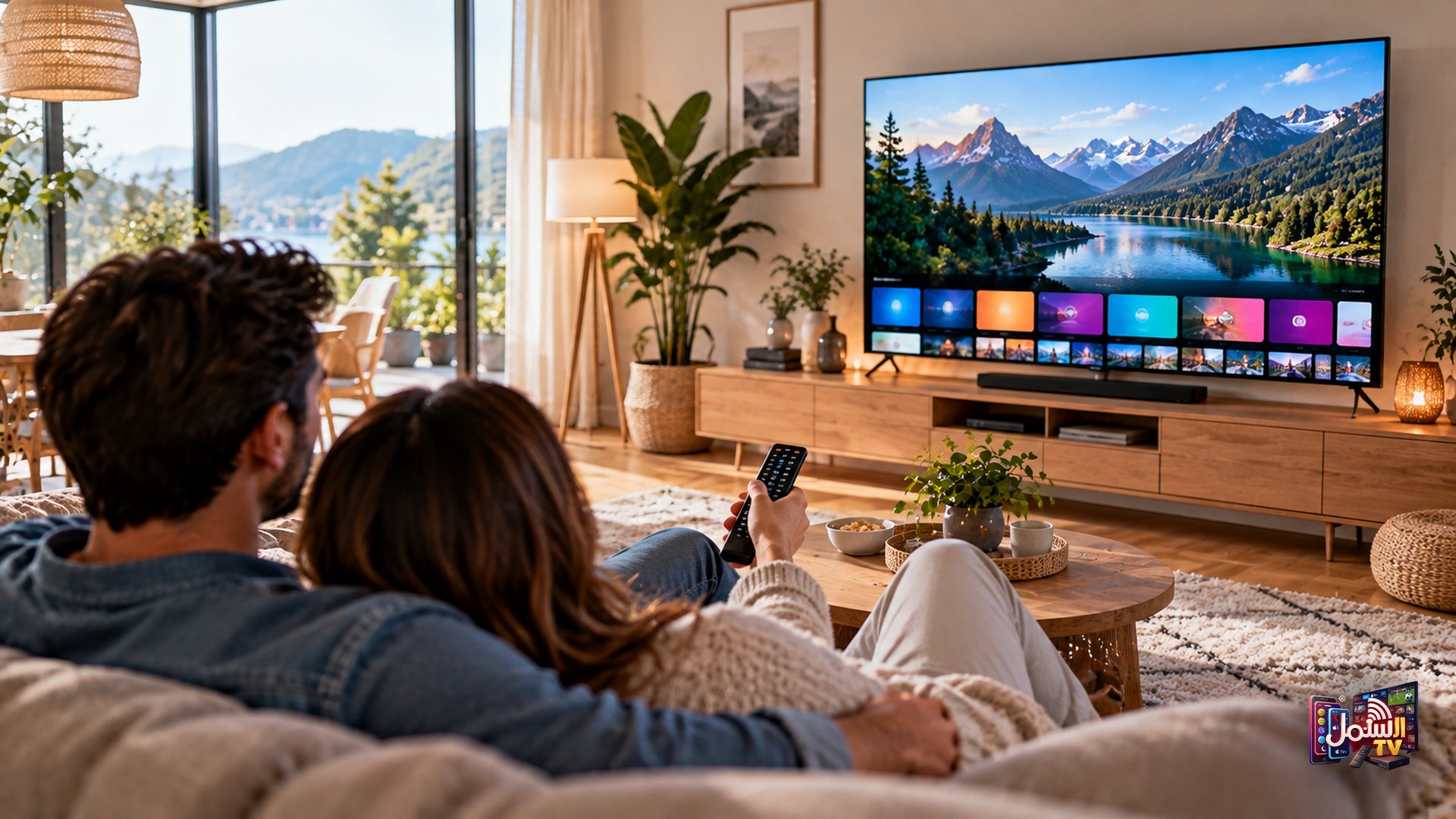
If you have a Samsung or LG Smart TV, you probably do not need any extra box or stick to watch Shamil TV. The TV itself can run the player app, so it is just you, the remote and a few minutes.
In many cases the player is already on your TV. All you have to do is open it, send us a photo of one screen, and our team activates it. This guide covers both cases: when the app is already installed, and when you need to download it first.
What you need
- A Samsung or LG Smart TV connected to the internet.
- Your TV remote.
- Your phone, with WhatsApp, to take a photo and message our team.
- An active Shamil TV subscription or a free trial.
Our recommended player is IBO Player. It handles ISP blocks better than free players and gives a steadier picture. IBO Player Pro is free with our 6-month and 1-year plans.
Step 1: Check if IBO Player is already installed
Many Samsung and LG Smart TVs come with IBO Player already on them, so check first:
- Press the Home button on your remote.
- Scroll through your apps and look for the IBO Player icon.
- If you find it, open it and skip to Step 3.
Step 2: Install IBO Player from your TV's app store
If the app is not there, download it from your TV's own app store. The name of the store depends on your TV brand:
| TV brand | App store to open |
|---|---|
| Samsung | Smart Hub (Apps) |
| LG | LG Content Store |
| Sony | Google Play |
- Open the app store for your TV.
- Search for IBO Player.
- Select Install and wait for it to finish.
- Open IBO Player.
Step 3: Send us your MAC address and Device Key
When IBO Player opens, the first screen shows your MAC Address and Device Key. Some versions label the MAC address as Device ID. It always looks like six pairs of letters and numbers separated by colons.
- Take a clear photo of the whole screen with your phone.
- Send it to our team on WhatsApp.
- Wait for us to confirm activation.
Whatever the label says, that value is what we need. If you are not sure which number is which, send the whole screen and we will pick out the right details.
Step 4: Restart the app and start watching
Once we confirm your player is activated, close IBO Player and open it again. Your channels, films and series load automatically.
From here you can browse live channels by country or category, open the film and series library, and check what is on using the TV guide. The full line-up includes more than 50,000 live channels, over 162,000 movies and more than 42,000 series, so it is worth taking a few minutes to explore the categories.
A long channel list can be hard to scroll through with a TV remote. If you only watch certain things, ask our team for a custom playlist after activation, for example South Asian channels only, sport only, or a kids-safe list. We build it for you. The adult section is also hidden and locked with a passcode by default, so the TV is family-safe from day one, and adult customers can ask us for the passcode privately.
Our article on the EPG TV guide explains how to get the most out of it.
Prefer a different app?
IBO Player is our top pick, but some Smart TVs also support other players such as IPTV Smarters Pro or GSE Smart IPTV. With these, we send you a server URL, username and password instead:
- Install IPTV Smarters Pro or GSE Smart IPTV from your TV's app store.
- Open it and choose Add User, then Xtream Codes API.
- Enter the server URL, username and password we send you. Copy them exactly, with no extra spaces.
- Save, and your channels load.
Not sure which one suits you? See our guide to the best IPTV player apps.
Keeping your Smart TV running smoothly
Smart TVs have limited memory, and over time cached files and extra apps can slow streaming down. A little care keeps the picture smooth:
- Do the unplug trick. If the app gets slow, unplug the TV and router for one to two minutes, then plug them back in.
- Clear the cache. In your TV settings, find the player under Apps and clear its cache.
- Remove apps you do not use. It frees up memory for the player.
- Use a cable if you can. Many Samsung and LG TVs have an Ethernet port. Our guide on Wi-Fi vs Ethernet explains why it helps.
- Check your speed. A minimum of 10 Mbps is needed, 25 Mbps is recommended for 4K and 50 Mbps or more for 8K.
Get your Smart TV set up today
Start a 24-hour free trial with no credit card, or compare plans on our pricing page. Send us your MAC address screenshot on WhatsApp and our team will take it from there, day or night.