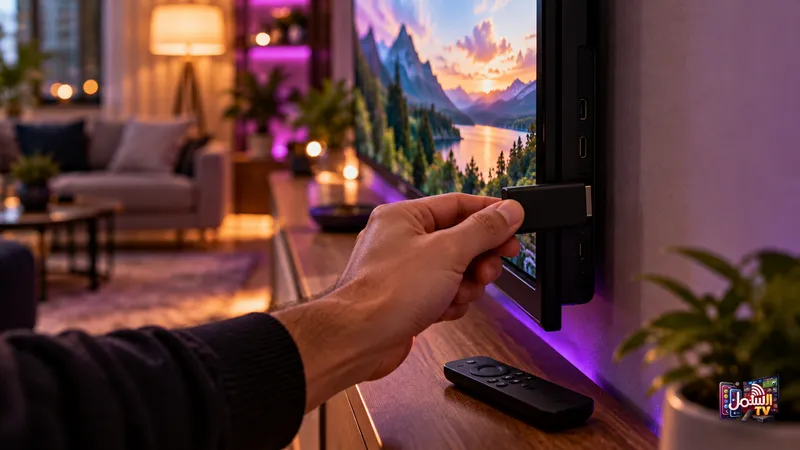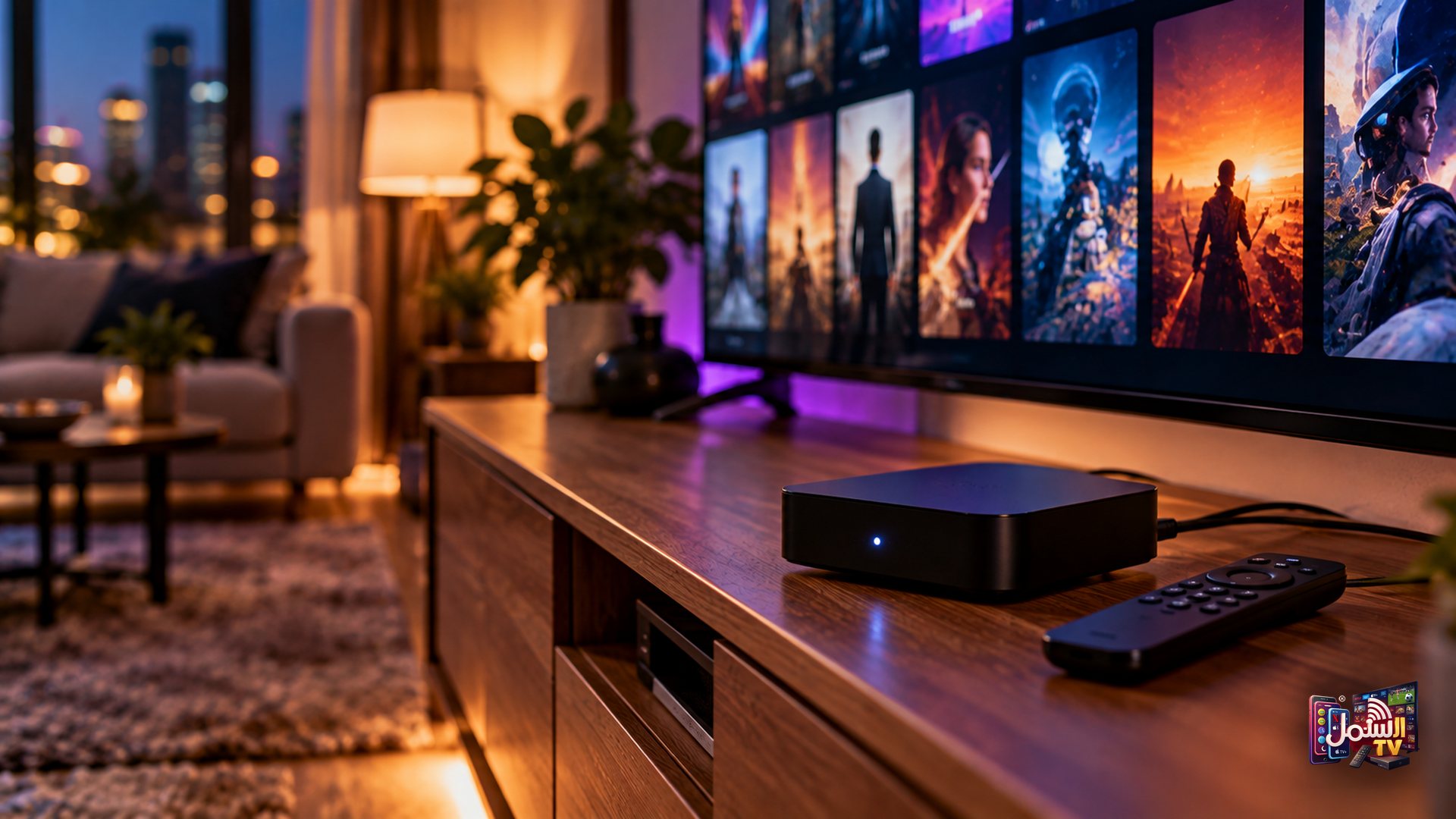
Android TV sets and Android boxes are some of the easiest devices to use with IPTV. They run the same Google Play Store you know from your phone, they handle 4K well, and setup takes only a few minutes once you know the steps.
This guide walks you through installing IBO XPlayer, the player we recommend for Android TV and Android boxes, and getting it activated by our team. No technical knowledge is needed. If you can install an app and take a photo with your phone, you can do this.
We also cover the free-player option and a few habits that keep your box running smoothly for months.
What you need before you start
Getting these few things ready first makes the whole process quicker:
- An Android TV or Android box signed in to a Google account so the Play Store works.
- A working internet connection. At least 10 Mbps for normal viewing, around 25 Mbps for 4K and 50 Mbps or more for 8K.
- Your phone, so you can photograph the activation screen and send it on WhatsApp.
- An active subscription or a free trial. If you have not started yet, you can request a 24-hour free trial first.
Step 1: Install IBO XPlayer from Google Play
IBO XPlayer is available directly in the Google Play Store, so there is nothing complicated to sideload.
- Press the Home button on your remote and open the Google Play Store.
- Use the search bar and type IBO XPlayer.
- Select the app and press Install.
- Wait for the installation to finish. Do not switch off the box during this time.
- Press Open.
If typing with the remote is slow, many Android TV remotes have a microphone button. You can simply say "IBO XPlayer" to search.
Step 2: Find your MAC address
When IBO XPlayer opens for the first time, it shows a screen with your MAC address, and often a Device Key as well. This is how we link your subscription to your device, so you never have to type a long username or password with the remote.
The MAC address always looks like six pairs of letters and numbers separated by colons, for example 21:1c:2b:34:40:a6. Some apps label it "Device ID" instead. Whatever the label says, that value is what we need.
- Take a clear photo or screenshot of the whole screen.
- Make sure every character is readable and nothing is cut off.
- If the screen shows both a Device ID and a Device Key, send the whole screen. We will pick what we need.
Step 3: Send it on WhatsApp and we activate
Send the photo to our team on WhatsApp. We activate your player from our side, which usually takes only a short time during business hours. Once it is done, we let you know.
Then close IBO XPlayer and open it again. Your live channels, movies and series load automatically. That is the whole setup.
Why we recommend IBO XPlayer on Android
You can use free players on Android, and some customers do. We recommend IBO XPlayer for a few practical reasons:
- It handles ISP blocking better than free players. Some internet providers slow down or block streams, especially during big matches. IBO XPlayer copes with this better. You can read more in ISP blocking explained.
- No typing credentials with a remote. Activation is done with your MAC address, so there is less room for typos.
- It works on all Android TV boxes as well as Android TV sets and Android phones.
Together with our Matrix Technology, which routes each stream over the fastest available path and switches route automatically if one slows down, this gives you a smoother picture with far less freezing.
The free-player alternative
If you prefer a free app, IPTV Smarters Pro and Televizo are both available on Google Play. Setup works with login details instead of a MAC address:
- Install IPTV Smarters Pro or Televizo from the Play Store.
- Open the app and choose Add New User, then Xtream Codes API.
- Enter the server URL, username and password we send you on WhatsApp.
- Tap Add User. Your channels load automatically.
Copy and paste the details rather than typing them, and check there are no extra spaces before or after the username or password. Also make sure the server URL starts with http:// exactly as we sent it.
Keeping your Android box running smoothly
Android boxes are small computers, and like any computer they slow down when memory fills up. A few simple habits help a lot:
- Clear the player cache now and then: Settings, Apps, choose your IPTV player, then Clear Cache.
- Uninstall apps you never use to free up memory.
- Avoid running several apps at once while you stream.
- Try the unplug trick if things feel sluggish: unplug the box and your router, wait one to two minutes, plug them back in and reopen the app.
If a picture keeps freezing even after this, our guide on why IPTV buffers and how to fix it goes through the next steps. And our team on WhatsApp can move you to a different server within minutes if needed.
Ready to set up your Android TV or box?
Start with a free 24-hour trial, no credit card needed, or see the plans on our pricing page. Stuck on a step? Message us on WhatsApp any time, day or night, and we will walk you through it.